


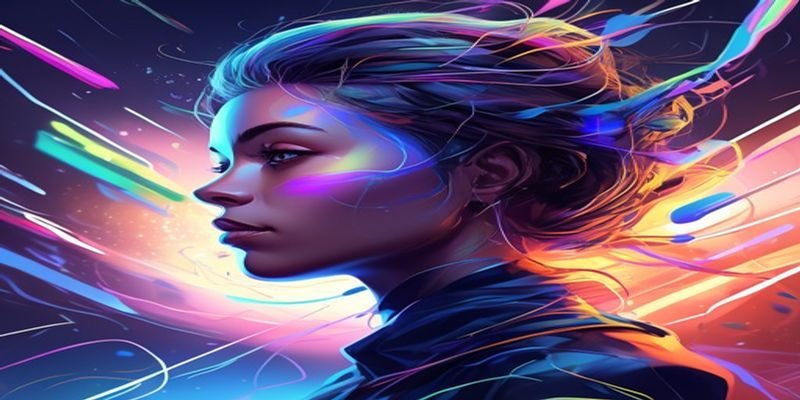
Create Stunning AI Art: Midjourney Tutorial for Beginners Step by Step
The world of artificial intelligence has democratized creativity, allowing anyone to produce breathtaking visuals with just a few typed words. Among the leading tools pioneering this revolution is Midjourney, a powerful AI art generator that transforms text prompts into incredible images. If you’ve ever dreamt of creating unique artwork but lack traditional design skills, Midjourney is your gateway. This comprehensive, step-by-step Midjourney tutorial for beginners will guide you through the process, from setting up your account to crafting your first stunning AI masterpiece.
You don’t need to be an artist or a tech wizard to succeed. With a bit of curiosity and this guide, you’ll be generating your own captivating AI art in no time.
What Exactly is Midjourney?
Midjourney is an independent research lab exploring new mediums of thought and expanding the imaginative powers of the human species. In practical terms, it’s an AI program and service that generates images from natural language descriptions, known as “prompts.” It operates primarily through its own Discord server, making it accessible and community-driven. Users interact with the Midjourney bot directly within Discord channels to input prompts and receive their generated art.
Getting Started: The Essentials
Before you dive into prompt creation, there are a couple of prerequisites to ensure a smooth journey.
1. Create a Discord Account
Midjourney runs entirely on Discord, a popular communication platform. If you don’t already have one, you’ll need to create a free account. It’s a quick process: download the app or use the web version, sign up, and verify your email.
2. Join the Midjourney Discord Server
Once your Discord account is ready, you’ll need to join the official Midjourney server. You can do this by visiting the Midjourney website and clicking “Join the Beta” or by using a direct invite link if you have one. Accept the invite, and you’ll land in the bustling Midjourney community server.
3. Understand Midjourney Subscription Tiers
While Midjourney previously offered a limited free trial, it now requires a subscription to generate images. You can view the current pricing and plans on the Midjourney subscription page. Choose a plan that suits your needs; even the basic tier offers plenty of generations to get started.
Your First AI Art: A Step-by-Step Midjourney Tutorial for Beginners
With your Discord account active and your Midjourney subscription set, it’s time for the exciting part: creating art!
Step 1: Navigate to a “Newbie” Channel
Inside the Midjourney Discord server, you’ll see various channels listed on the left sidebar. Look for channels labeled something like #newbies-# or #newcomer-rooms. These are dedicated spaces for beginners to generate images without overwhelming more advanced discussions. Click on one to enter.
Step 2: Initiate the `/imagine` Command
In the text box at the bottom of the selected newbie channel, type /imagine. As you type, Discord will likely auto-suggest the /imagine prompt command. Select it or press Enter. This command is how you tell the Midjourney bot you want to create an image.
Step 3: Craft Your First Prompt
After typing /imagine prompt:, a text field will appear. This is where you describe the image you want the AI to generate. The magic of Midjourney lies in prompt engineering – how well you articulate your vision. For beginners, start simple but be specific.
Example Prompt: /imagine prompt: a cozy cabin in a snowy forest, northern lights, soft glow, realistic, highly detailed
Consider these elements for your prompt:
- Subject: What is the main focus? (e.g., “a robot,” “a cat,” “a landscape”)
- Details: What specific features does it have? (e.g., “wearing a top hat,” “with glowing eyes,” “by a river”)
- Style/Atmosphere: What kind of look or mood? (e.g., “cyberpunk,” “impressionistic,” “dreamy,” “photo-realistic”)
- Lighting/Composition: How is it lit? What’s the scene like? (e.g., “golden hour,” “cinematic lighting,” “wide shot”)
Press Enter after typing your full prompt. The Midjourney bot will then begin processing your request.
Step 4: Watch Midjourney Generate Your Art
It takes about a minute for Midjourney to generate your images. You’ll see your prompt appear in the channel, followed by four rapidly developing image variations. The bot will notify you when your images are complete.
Step 5: Understanding the Grid: U and V Buttons
Once your four images are generated, you’ll see a grid of four images and a set of buttons below them:
- U1, U2, U3, U4: These are “Upscale” buttons. Clicking a ‘U’ button will take the corresponding image (1, 2, 3, or 4) and generate a larger, more detailed version of it.
- V1, V2, V3, V4: These are “Variations” buttons. Clicking a ‘V’ button will create four new image variations based on the style and composition of the selected image. This is excellent for refining your ideas.


Experiment with these buttons! If you like one of the images, upscale it. If you want to explore different directions from a promising design, create variations.
Step 6: Saving Your Masterpiece
Once you’ve upscaled an image you love, it will appear as a single, larger image. To save it:
- Click on the image to open it in a larger view within Discord.
- Right-click (on desktop) or long-press (on mobile) the image.
- Select “Save Image” to download it to your device.
Beyond the Basics: Simple Prompt Enhancements
As you get comfortable, you can start adding parameters to your prompts to achieve more specific results. These are added at the end of your prompt, separated by spaces.
- Aspect Ratio (
--ar): Defines the width-to-height ratio of the image. Common examples:--ar 16:9(widescreen)--ar 9:16(portrait)--ar 1:1(square, default)
Example:
a cozy cabin in a snowy forest, northern lights, soft glow, realistic, highly detailed --ar 16:9 - Stylize (
--s): Controls how artistic Midjourney is with its interpretation. Higher values create more artistic, less literal images. The default is 100. Values range from 0-1000.--s 0(very literal)--s 750(highly artistic)
Example:
a whimsical fairy tale castle --s 750 - No (
--no): Tells Midjourney what to omit from the image.--no trees(tries to remove trees)--no humans(tries to remove people)
Example:
a beautiful sunset over the ocean --no boats
Tips for Midjourney Success
- Experiment Relentlessly: The best way to learn Midjourney is by trying different prompts and parameters. Don’t be afraid to fail; every generation is a learning opportunity.
- Learn from Others: Observe the prompts used by other users in the public channels. When you see an image you like, you can often see the prompt that generated it. This is an invaluable way to discover new techniques and keywords.
- Be Specific, Then Abstract: Start with clear, concise descriptions. Once you have a handle on the basics, try adding more poetic or abstract language to see how the AI interprets it.
- Iterate and Refine: Rarely will your first prompt yield a perfect result. Use the V (Variations) buttons to explore different directions and the U (Upscale) buttons to enhance promising images.
- Use Strong Keywords: Descriptive adjectives and nouns are crucial. Instead of “a car,” try “a sleek, chrome-plated, vintage sports car.”
Frequently Asked Questions (FAQ)
Q1: Can I use Midjourney on my phone?
Yes, Midjourney operates through Discord, which has excellent mobile apps for both iOS and Android. You can generate and manage your images directly from your smartphone or tablet.
Q2: What if my images aren’t turning out how I envisioned?
This is a common experience! Prompt engineering is an art. Try refining your prompt with more specific adjectives, experimenting with different styles (e.g., “photorealistic,” “oil painting,” “cartoon”), or using parameters like --ar to control the aspect ratio. Don’t be afraid to try multiple variations or reroll your prompt.
Q3: Is my Midjourney art truly mine? Can I use it commercially?
According to Midjourney’s terms of service, subscribers generally have full commercial rights to the images they create. Free trial users (if available) typically operate under a more restrictive license. Always check the latest terms on the official Midjourney website for the most accurate and up-to-date information regarding usage rights.
Q4: How do I access my past generations?
You can view all your past Midjourney generations in your personal gallery on the Midjourney website (you’ll need to log in with your Discord account). This is a great way to revisit old projects and download images.
Q5: What are some good resources to learn more about advanced prompting?
The official Midjourney Discord server has dedicated channels for prompt discussions and guides. Many community members share tips and tricks. You can also find numerous articles and YouTube tutorials online that delve into advanced techniques, including using image prompts and specific stylistic keywords.
Your Creative Journey Begins Now
Midjourney offers an unparalleled opportunity to unleash your imagination and create stunning visual content, regardless of your artistic background. By following this midjourney tutorial for beginners step by step, you’ve taken the crucial first steps into the exciting world of AI art. Remember, consistency and experimentation are key. Keep prompting, keep exploring, and prepare to be amazed by what you can create.
Category: AI TOOLS
Tags: Midjourney tutorial, AI art, Generative AI, Discord guide, Prompt engineering, Beginner AI art, Digital art, AI tools